
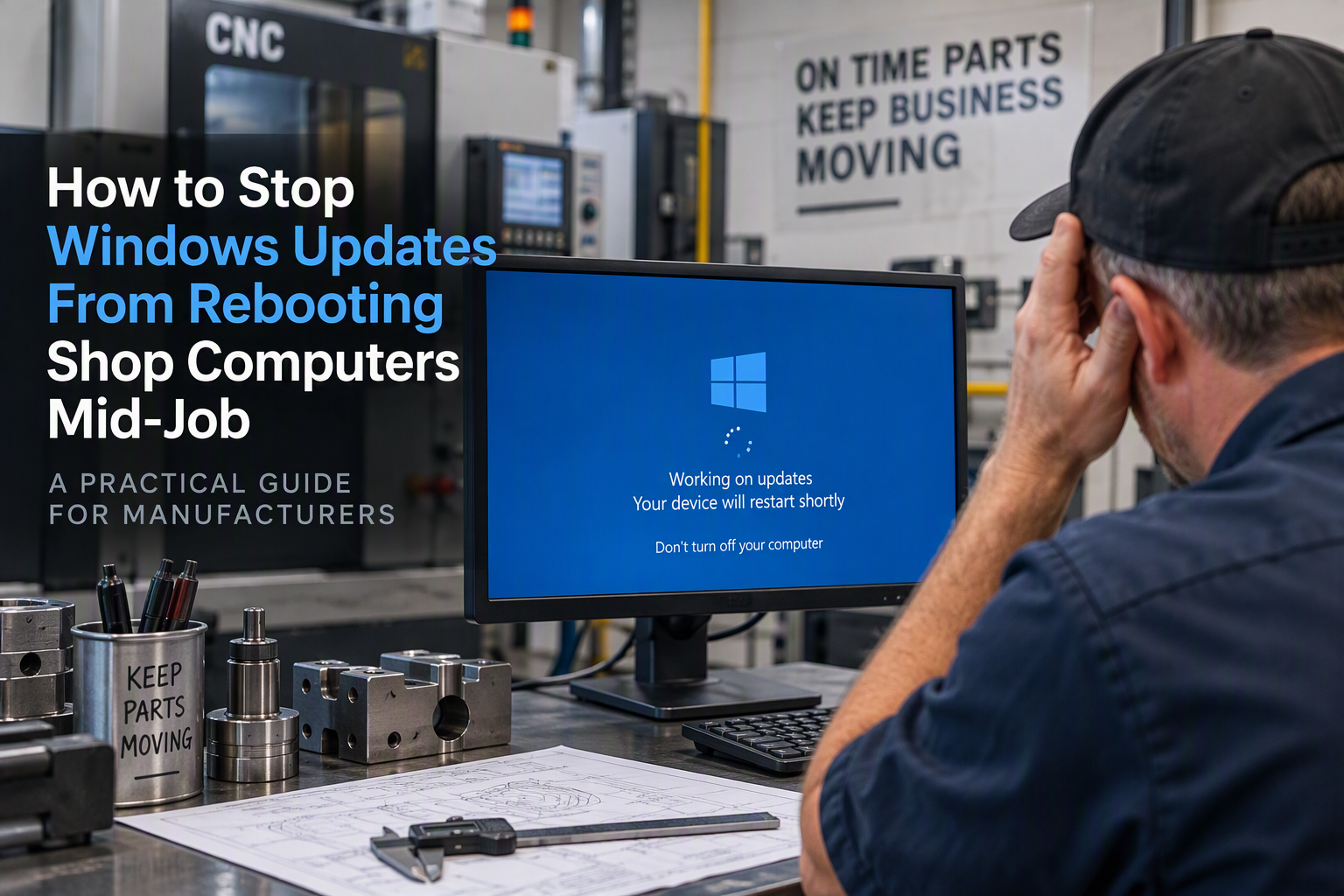
Unplanned Windows update restarts can stop inspection and CNC work mid-job.
Introduction
You come back from lunch and the inspection PC is sitting at a login screen. The CMM program is closed, the measurement routine you were halfway through is gone, and there's a "Your device restarted to install updates" message waiting for you. Or the PC that sends programs to the CNC rebooted overnight, and now first shift is standing around while someone figures out why the shared folder won't connect. Nobody touched it. Windows just decided it was a good time. If that sounds familiar, this guide shows you how to take back control of when your shop computers restart, without turning updates off and leaving those machines exposed. Here's how to stop Windows updates rebooting your shop computers in the middle of a job.
What You'll Need
- An administrator login for each PC you're changing. If a setting is grayed out, a company policy or IT provider is controlling it, and you'll need whoever manages that.
- The Windows version on each PC. Press Windows key + R, type winver, and press Enter. Windows 11 and Windows 10 put these settings in slightly different places.
- Your actual shift hours, including second shift, weekend overtime, and any unattended jobs that run overnight.
- A simple list of which PCs run production software: CMM/inspection, CAM/DNC, ERP terminals, label printers.
- For Step 6 only: Windows 10 or 11 Pro or higher. Home editions don't include the Local Group Policy Editor.
Step-by-Step Instructions
Part 1: Fix It on a Single PC (Settings App)
- Set active hours to match your real shifts.
- Windows 11: Select Start > Settings > Windows Update > Advanced options > Active hours. Change Adjust active hours to Manually, then pick your start and end times.
- Windows 10: Select Start > Settings > Update & Security > Windows Update > Change active hours. Select Change next to your current active hours, set the times, and select Save.
- Choose Manually, not Automatically. "Automatically" guesses your hours from how the PC is used, and a shop PC that sits idle while a job runs can look "unused" to Windows.
- Know the active hours limit. On current versions of Windows, active hours can cover up to 18 hours. Some older Windows 10 builds cap it at 12. (May vary by Windows version) If you run two full shifts, cover both with active hours and leave the remaining hours as your restart window.
- Turn off the "restart as soon as possible" option.
- Windows 11: Under Settings > Windows Update > Advanced options, make sure Get me up to date is Off. When it's on, the PC can restart during active hours with only a 15-minute warning.
- Windows 10: Under Update & Security > Windows Update > Advanced options, make sure Restart this device as soon as possible when a restart is required to install an update is Off.
- Turn on restart notifications so you get a heads-up.
- Windows 11: Go to Settings > Windows Update > Advanced options and turn on Notify me when a restart is required to finish updating.
- Windows 10: Go to Settings > Update & Security > Windows Update > Advanced options and turn on Show a notification when your PC requires a restart to finish updating.
- On some Windows 11 versions where update deadlines are also set, this setting can hold off automatic restarts for 24 hours after the first notice. Don't rely on that by itself. Active hours (Step 1) and a scheduled restart window (Step 6) are what actually keep reboots off your shifts. (May vary by Windows version)
- When an update is waiting, schedule the restart yourself. Go to Settings > Windows Update (Windows 11) or Settings > Update & Security > Windows Update (Windows 10), select Schedule the restart, and pick a time after the shift ends.
Need to protect a big job or an audit week? You can pause updates for up to 35 days. On Windows 11, go to Settings > Windows Update and select Pick a date next to Pause updates. Treat this as a short-term fix only. When the pause ends, Windows installs the waiting updates before it lets you pause again.
Part 2: Set a Fixed Restart Window (Windows Pro and Higher)
- Use Group Policy to set a scheduled install time.
- Press Windows key + R, type gpedit.msc, and press Enter.
- Go to Computer Configuration > Administrative Templates > Windows Components > Windows Update. On some versions, these settings are in a subfolder such as Manage end user experience. (May vary by Windows version)
- Open Configure Automatic Updates, select Enabled, choose 4 - Auto download and schedule the install, and set a Scheduled install time that falls outside every shift and any overnight jobs.
- With this setting, Windows installs at that time and restarts about 15 minutes after the installation finishes.
- Don't stack conflicting restart policies. Microsoft is clear that you should pick one approach to restart behavior, because conflicting policies can cause restarts you didn't expect. In particular, avoid No auto-restart with logged on users for scheduled automatic updates installations. Microsoft notes it doesn't work as described and can stop update restarts entirely on PCs where nobody ever logs off. That's exactly how shop PCs end up months behind on patches.
- Check that it worked. After your first restart window, go to Settings > Windows Update > Update history to confirm updates installed and when. Then open your production software and make sure it still launches, finds its license, and reaches its network folder.
When to Call a Professional
These steps work well for one PC or a handful. They start to fall short in a few situations:
- You have more than a few production PCs. When you set each one by hand, the settings slowly drift apart, and nobody remembers which PC is configured which way. A managed IT provider sets one restart policy for every machine from a central console and reports which PCs missed updates.
- You run around the clock. Active hours max out at 18 hours. A 24/7 operation needs restart windows staggered by machine or by cell, which is a planning job more than a settings change.
- An update broke something. If the CMM software, CAM post, or license server stopped working after an update, you can remove some updates under Update history > Uninstall updates. Microsoft doesn't recommend it, though, and not every update can be removed. Production PCs should get updates tested before rollout.
- The PC can't be updated at all. Older machine-control PCs on Windows 7 or XP don't get these updates at all. Windows 10 also stopped getting regular security updates in October 2025 unless you're enrolled in Extended Security Updates. These PCs need to be isolated on the network, not just rescheduled.
- You're tempted to turn updates off completely. Registry hacks and disabling the Windows Update service stop the reboots, but they also stop security fixes. If you do DoD or prime-contractor work, unpatched systems also put your NIST 800-171 commitments at risk.
If any of these describe your shop, the restart problem is really a patch management problem. That's the point where handing it to IT professionals saves you more time than it costs.
FAQ
Can I just turn Windows updates off permanently?
Not through the normal settings, and you shouldn't try. Updates are built to install eventually, whatever your settings are. Pausing is only temporary. Once you hit the pause limit, Windows installs the latest updates before it lets you pause again.
Why did my PC restart even though I set active hours?
There are three usual causes:
- Get me up to date is turned on. That setting allows restarts during active hours with a 15-minute warning.
- A restart deadline was reached because updates were put off too long. Windows then shows a 15-minute warning you can't dismiss and restarts the PC.
- Updates had been waiting a long time. Windows won't hold them forever and will eventually install them and restart.
If none of these apply, a company or IT provider policy may be controlling restarts on that PC.
I heard Windows now restarts only once a month. Is that true?
Partly. For updates released on or after July 28, 2026, Windows is starting to bundle driver, .NET, and firmware updates with the monthly security update so they share one restart. The change is rolling out gradually, and some updates, such as Microsoft Defender updates and emergency fixes, still install right away. Don't count on it to protect your production PCs.
Why are the update settings grayed out on some of our PCs?
Something else is controlling them, usually a Group Policy or an IT provider's management tool. Changing things in the Settings app won't override that, so ask whoever manages those PCs.
When's the best time to schedule restarts?
Pick a time when no shift is working and no unattended job is running. Leave a few hours before first shift starts, because a large update can take a while to finish. If you use a scheduled install time (Step 6), the PC restarts about 15 minutes after the install finishes, so plan for that.
Want Updates Off Your Shifts for Good?
If you've got more than a few production PCs, run multiple shifts, or have machines that can't safely be updated, a settings change on each PC only gets you so far. Noble Technology Group helps San Diego manufacturers keep shop computers patched after hours, without breaking CAM, CMM, or ERP software.
Book a free 20-minute consult. We'll look at how your shop PCs are getting updated today, give you a one-page plan, and answer your questions in plain words.
Schedule Your Free 20-Minute Consult
Prefer to talk now? Call (619) 752-1620